
Passky API Client
JavaScript API client library for Passky password management services. Provides developers with tools to integrate password management functionality into web applications.
About Passky API Client
Point this JavaScript library at your Passky instance and start making authenticated API calls in minutes. The library wraps the full Passky password management API — creating vaults, retrieving credentials, handling tokens — so you write clean application code instead of raw fetch calls and manual error handling.
It's built for developers integrating password management into web apps: think internal tools, browser extensions, or any JavaScript project where users need a secure credential store they control. The developer tools category has related utilities if you're assembling a broader stack. For anything touching encoding, hashing, or encryption alongside your auth layer, CyberChef pairs well here.
The library ships under the MIT license, so production use is straightforward. It targets modern JavaScript environments and works best when you already have a Passky server running — check the GitHub source for the full method reference before wiring it into your build.
Look inside
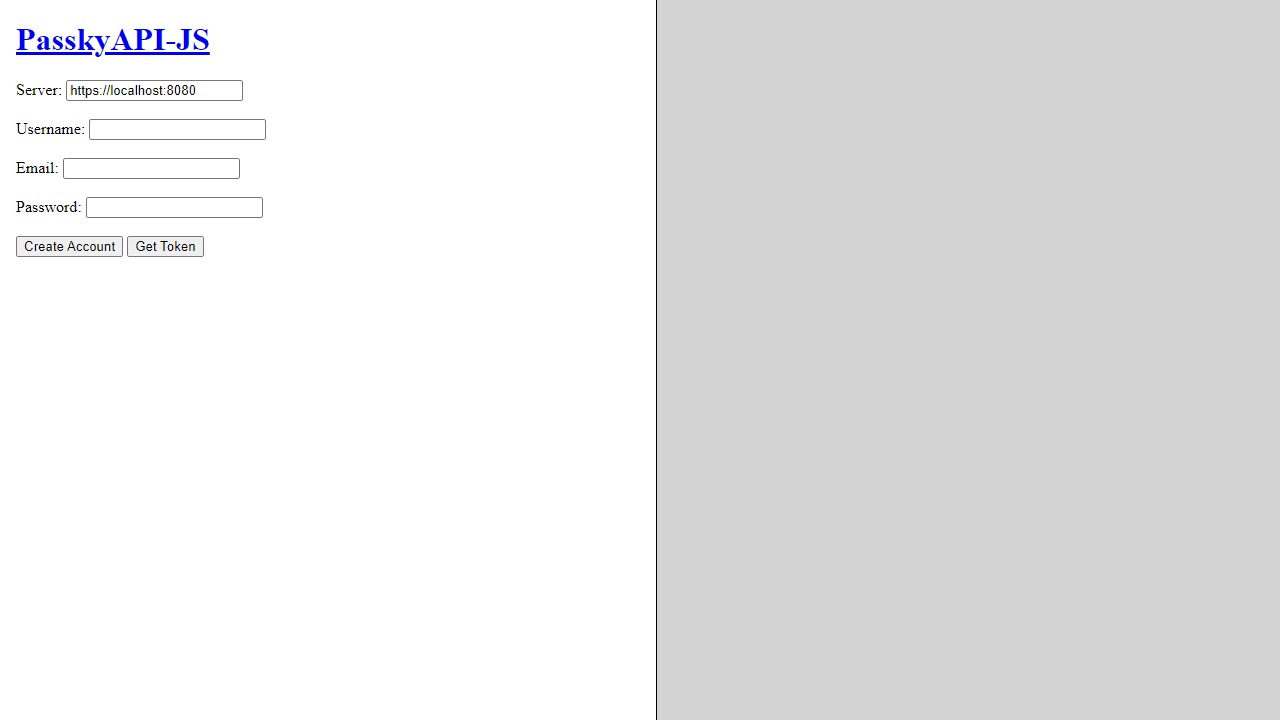
How to use
This is a developer tool for testing and interacting with the Passky password manager API. Use it to create accounts, manage passwords, and see API responses in real-time. **Getting Started:** 1. Enter your Passky server URL in the Server field 2. Fill in username, email, and password fields 3. Click "Create Account" to register or "Get Token" to log in **Once Logged In:** • Use Account buttons to view or delete your account data • Save passwords by filling out the website, username, password, and message fields, then click "Save Password" • View all saved passwords in the table below the input fields • Edit existing passwords by entering the ID and new details, then click "Edit Password" • Delete individual passwords using the Action column in the table • Clear all passwords with "Delete Passwords" button **Responses:** • All API calls appear in the right panel • Green backgrounds indicate successful responses • Red backgrounds show errors or failed requests
Reviews
No written reviews yet. Be the first!
More from Developer

Convert Scratch projects into standalone HTML files. Upload a Scratch project and download a self-contained web page you can share.
by SheepTester


