
Task Manager
Premium task manager with priorities, categories, due dates, streak tracking, cloud sync, and social sharing.
About Task Manager
Add a task, assign it a priority, drop it into a category, and set a due date — that's the core loop. Task Manager handles the organizational plumbing most to-do apps skip: streak tracking keeps daily momentum visible, cloud sync means your list follows you across devices, and social sharing lets you loop in anyone who needs to see your progress. It's a full-featured planner built for people who actually have a lot going on.
The priority and category system is where it earns its keep. Color-coded urgency levels and custom categories mean a cluttered inbox turns into something you can scan in seconds. Streaks reward consistency rather than just completion, which nudges you toward building habits rather than just clearing one-off items. If you want to think through projects before turning them into tasks, Mind Map is worth a look for the brainstorming side of things.
Browse more tools like this in productivity. Task Manager works best on a keyboard-equipped device — quick-adding a string of tasks goes noticeably faster when you can tab between fields without lifting your hands.
Look inside
How to use
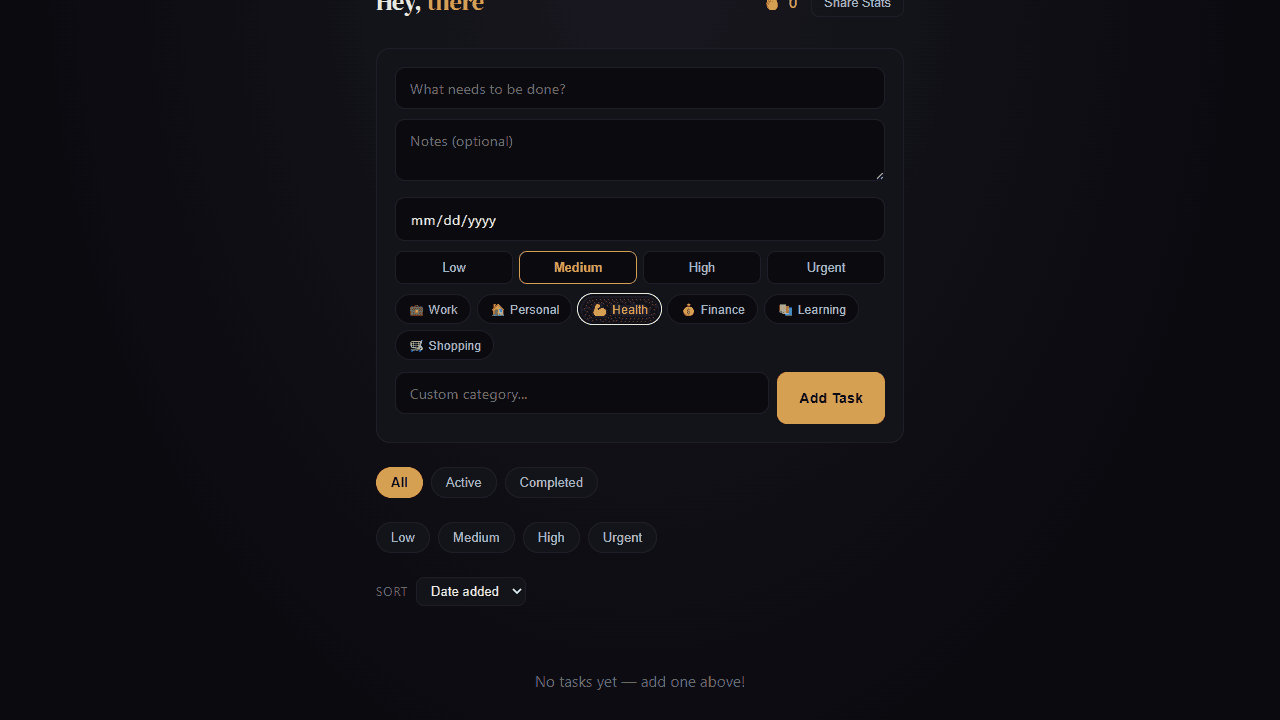
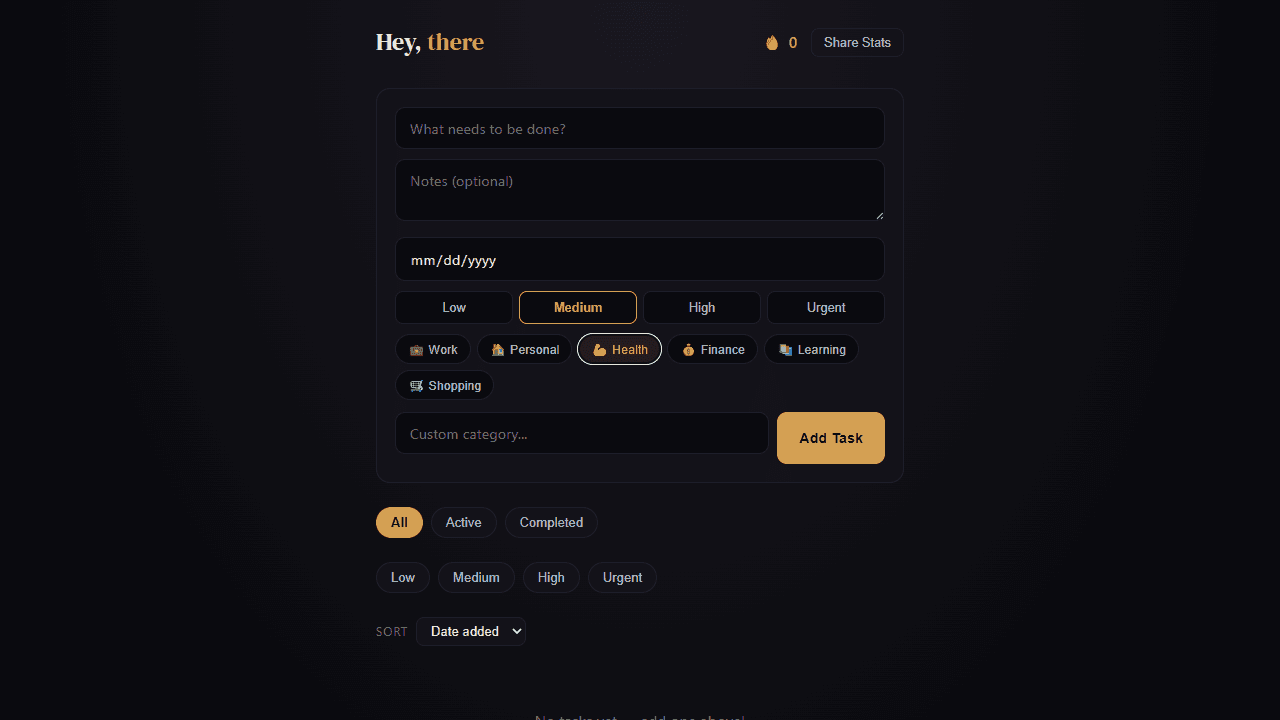
This is a task management tool that helps you organize your to-do list with priorities, categories, and due dates. • Click "Add Task" (desktop) or the + button (mobile) to create new tasks • Fill in task title, optional notes, due date, priority level, and category • Click the circle next to any task to mark it complete - this builds your completion streak • Use filter chips at the top to view tasks by status (All/Active/Completed), category, or priority level • Change sorting with the dropdown menu (by date, due date, priority, or alphabetical) • Click the pencil icon on any task to edit it inline • Click the X icon to delete tasks • Double-click any task title to quickly edit it • Use the "Share Stats" button to show your productivity progress • Completed tasks are moved to a collapsible section at the bottom • Tasks show visual indicators: colored left borders for priority levels, red text for overdue items, and pulsing dots for urgent tasks • Your completion streak (fire emoji + number) tracks consecutive days of task completion
Reviews
More from Productivity

A minimal, single-page Markdown editor with instant live preview. Toggle between editor and preview on mobile, or use the side-by-side layout on desktop.


