Your first few days on Launch Arcade feel a little like a candy store
There's a lot to explore. You try a few games, stumble onto a tool you didn't know you needed, bookmark something mentally, and then completely forget where it was. Sound familiar? That's what the My Arcade shelf and the unlock system are designed to fix.
Here's how it all works — and how to get the most out of it from day one.
What are slots?
Every Launch Arcade subscription comes with a set number of slots. Think of a slot as a saved seat for an app. When you unlock an app, it claims one of your slots and becomes yours to return to whenever you want — no hunting through the catalog, no starting over.
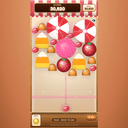
Slots aren't one-time use. If you unlock Candy Drop and play it for a week, it stays in your shelf until you decide to swap it out. You're in control of what holds a slot and what doesn't.
How unlocking actually works
When you find an app you want to keep coming back to, hit the unlock button on its page. That's it. The app moves into your My Arcade shelf and your slot count ticks down by one.
If you run out of slots, you'll need to swap something out before you can unlock anything new. Go to your shelf, remove an app you're done with, and that slot opens back up. The app you removed isn't gone forever — it's still in the catalog. You just won't have direct shelf access to it anymore.
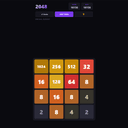
This is worth thinking about a little upfront. If you're someone who likes a quick daily game like 2048, lock that slot in early. Same goes for anything you want to check regularly — Daily Briefing is a good example of an app that's only useful if it's actually easy to reach every morning.
The My Arcade shelf
My Arcade is your personal corner of Launch Arcade. It lives in your account and shows every app you've currently unlocked. No scrolling through 500+ titles. No trying to remember what that geography game was called. Just the apps you've chosen, ready to go.
A few things worth knowing about the shelf:
- Order matters. You can arrange your shelf however you like. Put the stuff you use daily at the top.
- It syncs across sessions. Log in from a different browser or device and your shelf is exactly where you left it.
- Swapping is free and instant. Changing your mind costs nothing. Rotate apps in and out as your interests shift — heavy puzzle phase one month, productivity tools the next.
A few tips for managing your slots well
New subscribers often make the same mistake: they unlock five apps quickly in the first session and then feel stuck. Here's a better approach.
- Browse before you unlock. Spend a session or two just trying things. Most apps let you play or explore without using a slot.
- Keep one or two slots open. It's genuinely nice to have a free slot when you discover something new mid-month.
- Revisit your shelf monthly. Apps you haven't touched in three weeks are probably good swap candidates.
Finding new apps to replace old ones
The catalog is the best place to browse when you're ready to rotate something out. Filter by category, check what's been recently added, or just wander. We add new apps regularly, so there's usually something worth trying.
Explore the full catalog at launcharcade.com/catalog — and don't sleep on the lesser-known tools and lifestyle apps. They tend to be the ones people end up keeping in their shelf the longest.